


By: Anushka Verma | Updated: October 28, 2025
Introduction
Microsoft Word — the cornerstone of productivity tools worldwide — has once again evolved. In its latest update, the company announced a default automatic cloud-saving feature, which means your documents will now be automatically stored in OneDrive or your preferred cloud destination the moment you create them.
While this feature introduces greater convenience, data safety, and remote accessibility, it also raises concerns about privacy, control, and user autonomy. Millions of users globally rely on Word for sensitive content — from corporate contracts and research papers to personal journals. Thus, not everyone feels comfortable with Microsoft automatically uploading every document to the cloud.
This comprehensive guide explains everything you need to know about the new cloud-saving system — from its benefits and drawbacks to how you can easily disable it if you prefer storing files locally.
Quick Overview: What’s New in Microsoft Word (2025 Update)
| Feature Name | Description | Default Setting | User Control |
|---|---|---|---|
| Auto Cloud Save | Automatically stores new Word documents on OneDrive or preferred cloud service | Enabled by default | Can be disabled manually |
| Local Save Preference | Allows saving directly to PC storage | Disabled by default | Can be enabled in “Options > Save” |
| Integrated Copilot Access | AI summarization and document editing features | Available to Microsoft 365 users | Optional |
| Collaboration Tools | Real-time editing and sharing | Automatically linked to OneDrive | Manageable via sharing settings |
| Security & Backup | Automatic file versioning and data recovery | Active | Not removable but customizable |
Why Microsoft Introduced Automatic Cloud Saving
The shift toward cloud storage isn’t arbitrary. Microsoft’s strategy reflects the broader digital transformation trend, emphasizing remote collaboration, seamless access, and data safety.
Here’s the rationale behind the update:
1. Accessibility Across Devices
With cloud-based saving, your documents are instantly available across any device connected to your Microsoft account — laptop, tablet, or smartphone. You can start a report on your office PC and finish editing it on your mobile phone during your commute.
2. Data Security and Backup
Microsoft’s servers offer encrypted backups, reducing the risk of losing files due to local hardware failure or accidental deletion. The automatic version history also allows users to restore previous drafts with ease.
3. Real-Time Collaboration
Teams can co-edit files simultaneously without email attachments or duplicate versions. This feature aligns with Microsoft 365’s collaboration suite, empowering users to share feedback instantly through OneDrive integration.
4. AI Integration via Copilot
Users with Microsoft 365 Copilot licenses can leverage the AI assistant to summarize, rewrite, or organize documents — all directly within Word. Since Copilot accesses cloud-synced files, automatic saving ensures smoother AI-assisted editing.
The Other Side: Why Some Users Want to Disable It
Despite its benefits, not every user welcomes the idea of forced cloud storage. Here are the primary reasons people prefer to keep this feature turned off:
1. Privacy Concerns
For users working with confidential files — legal contracts, client data, or personal writings — storing documents in the cloud may feel intrusive. Even with encryption, the idea of uploading everything to a remote server can be unsettling.
2. Internet Dependency
If your internet connection drops, automatic saving or opening of files from the cloud can be interrupted, potentially delaying your work.
3. Storage Limitations
Free OneDrive accounts come with limited space (typically 5GB). Automatic uploads can quickly consume this storage, forcing users to either delete old files or purchase additional space.
4. Reduced Local Control
When new files are created in the cloud by default, users might lose track of where their documents are stored — locally or online — which complicates file management.
Step-by-Step Guide: How to Turn Off Auto Cloud Saving in Microsoft Word
If you prefer to save files locally and prevent automatic cloud uploads, follow these simple steps:
Step 1: Open Microsoft Word
Launch Microsoft Word on your Windows PC or laptop. Ensure that it’s updated to the latest version.
Step 2: Go to File Menu
Click the ‘File’ tab at the top-left corner of the screen. This opens the backstage view containing all file-related settings and preferences.
Step 3: Access Options
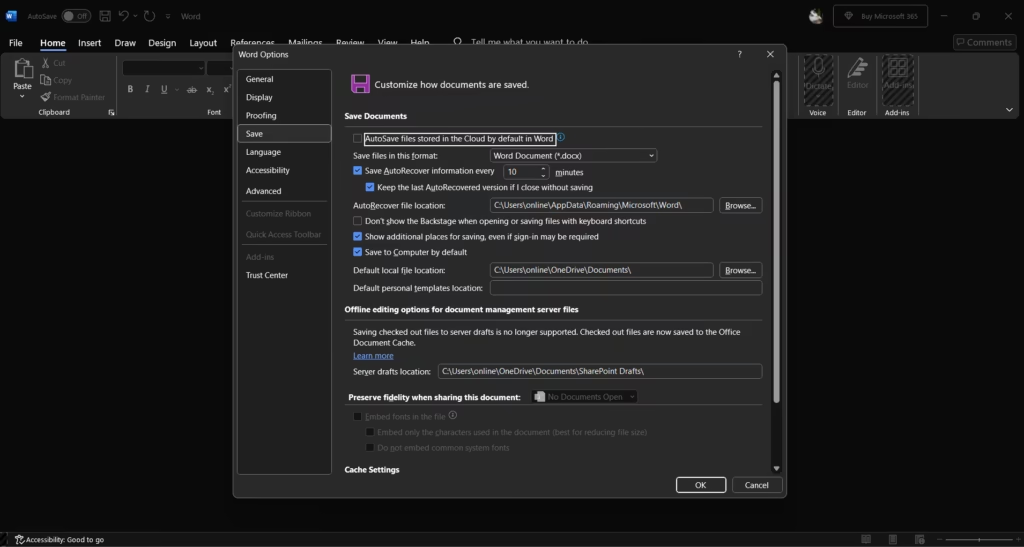
From the left-hand menu, scroll down and click on ‘Options’. A dialog box will appear with several categories such as General, Display, Save, Language, etc.
Step 4: Navigate to the Save Tab
In the Options dialog, select ‘Save’ from the left-side pane.
Step 5: Change Cloud Save Settings
Now, make these two key changes:
- Untick the box labeled “Create new files in the cloud automatically.”
- Tick the option “Save to Computer by Default.”
Step 6: Confirm and Save
Click OK to apply your changes. Now, every time you create a new document, Word will prompt you to choose a local folder instead of saving directly to OneDrive.

Visual Summary: Turning Off Auto Cloud Save
| Step | Action | Result |
|---|---|---|
| 1 | Open Word → File → Options | Opens settings menu |
| 2 | Click “Save” | Displays saving preferences |
| 3 | Untick “Create new files in the cloud automatically” | Stops default cloud saving |
| 4 | Tick “Save to Computer by Default” | Enables local saving |
| 5 | Click OK | Confirms your settings |
What Happens After You Turn It Off
When the automatic cloud save feature is disabled:
- All new documents will be stored on your local drive (e.g., Documents folder or any selected location).
- You’ll still have the option to manually upload files to OneDrive later.
- Microsoft Word will no longer automatically sync your edits to the cloud unless you initiate it manually.
In essence, you regain full control over where and how your work is stored.
Understanding the Balance: Cloud vs. Local Saving
| Aspect | Cloud Storage (OneDrive) | Local Storage (PC) |
|---|---|---|
| Accessibility | Access anywhere, any device | Only on the device |
| Security | Encrypted & backed up | Depends on local safety |
| Privacy | Data shared with Microsoft servers | Fully private |
| Collaboration | Real-time co-authoring | Requires manual sharing |
| Storage Limit | Depends on plan (Free: 5GB) | Based on disk capacity |
| Internet Needed | Yes | No |
Expert Insights: Why Microsoft Took This Step
Industry experts suggest that Microsoft’s decision reflects the growing shift toward AI-powered, cloud-integrated productivity ecosystems. By making cloud saving the default, Microsoft ensures users are better positioned to take advantage of Copilot AI, version control, and collaboration tools.
According to analysts, this approach mirrors similar strategies by Google Docs and Apple iCloud, where real-time autosave and cloud access have become standard features.
However, Microsoft’s inclusion of a manual opt-out option shows awareness of privacy-conscious professionals who prefer keeping sensitive files offline.
How This Impacts Different Types of Users
1. Students and Educators
Cloud saving makes assignments accessible from anywhere — ideal for remote learning. However, students with limited internet access may face disruptions.
2. Professionals and Corporate Users
For teams working across countries, this update simplifies collaboration. But organizations with strict data policies might prefer disabling it.
3. Writers and Freelancers
Authors and freelancers often deal with sensitive drafts and client content. Local saving ensures their creative work remains fully private.
4. Government and Legal Professionals
For sectors where document confidentiality is critical, local storage continues to be the preferred and safest approach.
How This Ties Into Microsoft 365 Copilot
With documents stored in the cloud, Microsoft Copilot — the company’s AI assistant — can summarize, rewrite, and improve content seamlessly. For example, it can:
- Generate summaries of lengthy reports.
- Rewrite paragraphs for clarity or tone.
- Suggest headlines or structures for content.
- Extract action points from meeting notes.
However, since these functions rely on AI models accessing stored documents, users who disable cloud saving won’t benefit from full Copilot integration.
Security and Privacy Considerations
While Microsoft emphasizes strong encryption, users should remain aware of the following points:
- Data Encryption: Files are encrypted during upload and storage.
- Access Logs: Microsoft retains metadata for activity tracking.
- Jurisdiction: Depending on your region, data may be stored on international servers.
- Manual Control: Users can delete or restrict files from OneDrive anytime.
For maximum privacy, consider disabling automatic syncing and using BitLocker or password protection for locally saved Word files.
Alternative Methods to Manage File Storage
If you prefer flexibility instead of completely disabling cloud saving, here are options:
- Selective Cloud Sync: Use OneDrive settings to sync only specific folders.
- Manual Upload: Save locally, then upload only final versions to the cloud.
- Encrypted Drives: Use third-party encrypted storage (e.g., VeraCrypt).
- USB or External Drives: Ideal for offline backups without online exposure.
Troubleshooting: If Word Still Auto-Saves to Cloud
Sometimes, even after disabling the setting, Word may still prompt OneDrive. Here’s what you can do:
- Check Account Sync: Go to OneDrive Settings → Unlink PC.
- Reboot Word: Close and reopen the app to apply changes.
- Sign Out Temporarily: Use Word in offline mode to ensure no background sync.
- Registry Fix (Advanced Users): Modify registry settings to disable default OneDrive paths. (Use caution and back up before editing.)
FAQs About Microsoft Word’s Cloud Saving
Q1: Is this feature available for free users?
Yes, but free users only get 5GB of OneDrive storage.
Q2: Can I still access documents offline if saved to the cloud?
Yes, OneDrive keeps cached copies on your PC for offline editing.
Q3: Does turning it off affect Copilot or AI features?
Yes. Disabling cloud saving may limit AI-driven document assistance.
Q4: Is this update available on Mac?
Currently, the automatic cloud save feature is rolling out for Windows users, with Mac support expected later in 2025.
Q5: Will disabling this feature affect autosave?
No. Autosave will still work for local files, provided the document is stored on your device.
Final Thoughts
Microsoft Word’s move toward automatic cloud saving represents the company’s vision for a connected, intelligent, and collaborative workspace. It bridges the gap between AI-driven convenience and traditional document security.
However, the decision to upload every new file to the cloud should always remain a user’s choice. Thankfully, Microsoft allows flexibility — empowering users to opt for either cloud convenience or local control.
Whether you’re a privacy-focused professional or a collaboration-driven creator, this update ensures Word remains adaptive to your workflow. By understanding and managing these new settings, you can enjoy the best of both worlds — efficiency and autonomy.